Free Library Makerspace Pack: Cut Files, Kit Card and Project Log
18 beginner cut files for library makerspaces and Library of Things Cricut kits, each one sized for the small Cricut Joy mat and most with a bigger version for a standard 12 × 12 in mat. Download one ZIP or single files, then print the kit insert card and patron log that go with them.
- No ads, no sign-up. No account, no email, no checkout.
- Libraries and schools may share these files
- 32 files, every one cut-checked by our software

Why this exists. Library makerspace guides point patrons to free SVG sites, then have to add the catch: one needs an account, one an email signup, one a checkout, one a membership. The Algonquin Area Public Library makerspace page lists exactly that for six popular sources. Everything here downloads with one click, and the license below lets you put the files on a kit’s USB stick or a shared drive.
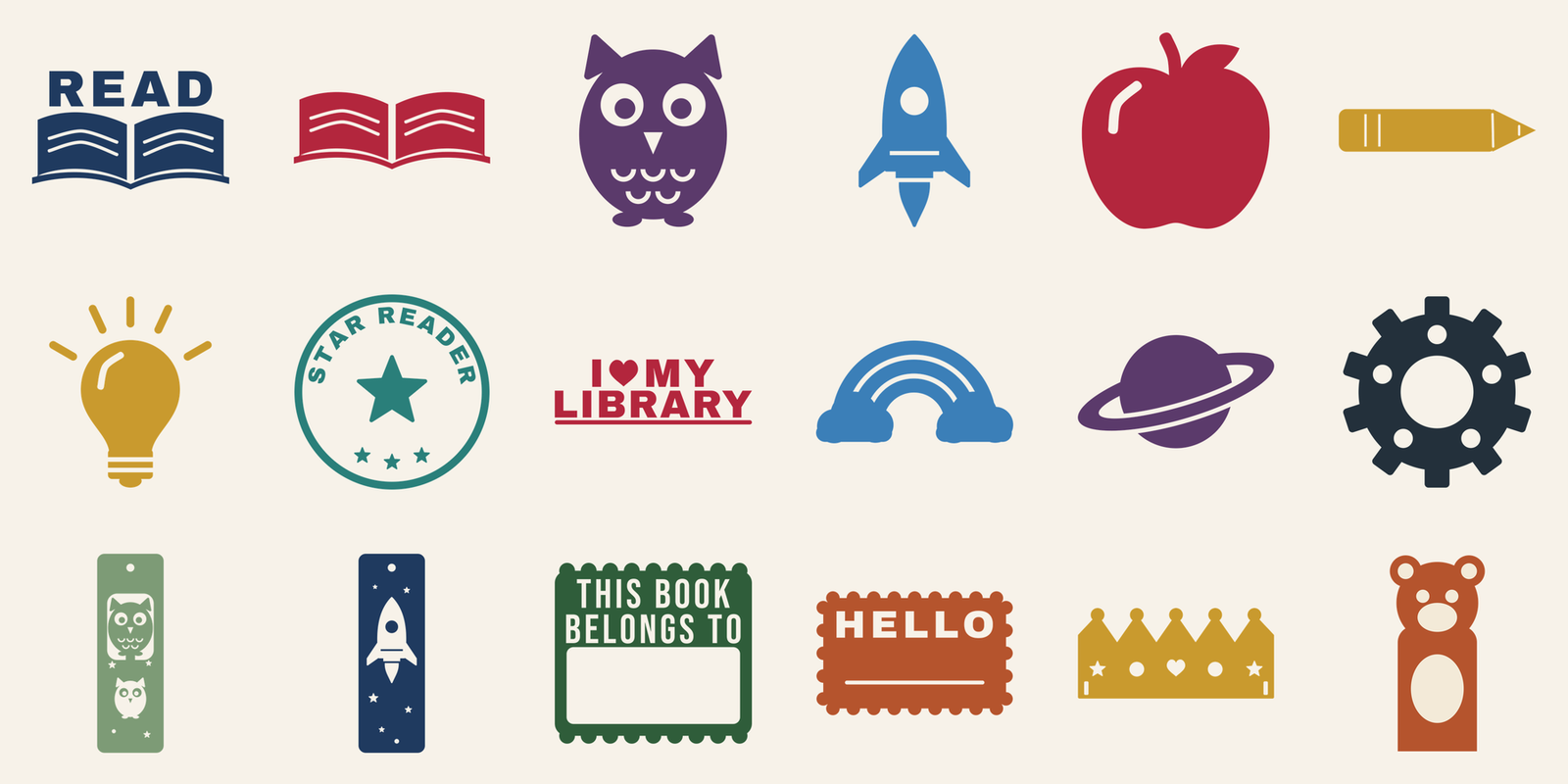
The 18 designs
Every design is one color unless noted, with no tiny pieces to weed, so a first-time patron can finish it. Each comes as SVG (Cricut Design Space, Silhouette Designer Edition, Inkscape), DXF (Silhouette Basic and other cutting software) and PNG (preview, or print it as a coloring sheet). Joy files fit the 4.5 × 6.5 in Joy mat. Standard mat files are the same art, larger, for Explore, Maker and Joy Xtra.













































































Download everything
32 files (18 designs, most in two sizes) in SVG, DXF and PNG folders, plus a README with the sizes and the license. 1.5 MB.
Every file was checked by our software at its download size for pieces too thin or too small to cut and weed (how we check files). That’s a software check, not a test cut on every machine, so cut a small test on new material first. No account or email needed, now or later.
Which size do I pick?
| Machine in your kit | Mat it uses | Pick |
|---|---|---|
| Cricut Joy | 4.5 × 6.5 in or 4.5 × 12 in | -joy files, bookmarks, name tag, puppet |
| Cricut Joy Xtra | 8.5 × 12 in | -joy files, or -standard files under 8 in wide |
| Explore (Air 2, 3, 4, 5) and Maker | 12 × 12 in or 12 × 24 in | Either size |
Upload the SVG and leave the size alone: each file opens at the size it was checked at. You can make a design bigger. Shrinking one below its listed size can make thin parts too fine to weed. Mat sizes are from Cricut’s mat guide. The bookmarks, name tag and bear puppet come in one size that fits every machine.
Lending an Explore Air 2? It has a Smart Set dial on top. Turn it to Vinyl for vinyl, Cardstock for cardstock, or Custom and pick the material by name in Design Space. Our materials and settings chart covers every current model.
Kit insert card for Library of Things
A half-page card for the bag or case: a checklist of what’s in the kit (with blanks for your counts), what to install, where to get the free files, a first project, and what to do before returning it. It prints two to a letter sheet, so one page covers two kits.
Cutting machine kit
In this kit
- Cutting machine
- Power cord USB cable? ___
- Cutting mats Light ___ Standard ___ Strong ___
- Blade (in the machine)
- Weeding hook, scraper other tools ___
- Starter vinyl / cardstock sheets ___
- This card and the project log
Before you start
Install Cricut Design Space (free: Windows, Mac, iPhone, iPad, Android) at design.cricut.com. Cricut asks you to sign in with a free Cricut account to use the machine. The files below don’t need any account.
Free beginner files
cleancutsvg.com/
library-makerspace-pack
No account, no email. Pick a -joy file for a Cricut Joy (small mat) or a -standard file for a 12 × 12 in mat.
First cut in about 15 minutes
- Upload open-book-joy.svg. Leave the size as it opens.
- Click Make. Vinyl stickers: Mirror off.
- Pick your vinyl by name in the material list.
- Vinyl colored side up on the mat, top-left corner. Load, press Go.
- Peel away the vinyl around the design. Use transfer tape to move it.
If it goes wrong
- Didn’t cut through: pick More pressure, cut a small test shape.
- Cut through the backing: pick Less.
- Vinyl slides on the mat: press it flat with the scraper. Old mats lose grip.
- Shirt words backward: iron-on needs Mirror on, shiny side down.
Before you return it
- Scraps off the mats, clear covers on
- Blade back in the machine
- Everything on the list at left
- Problems noted in the log
Libraries, schools and makerspaces may print, copy, cut and share these files with patrons and students. Card and files from cleancutsvg.com, an independent site not affiliated with Cricut. Cricut, Cricut Joy and Design Space are trademarks of Cricut, Inc.
Patron project log
Put this in the kit or next to the machine. Each patron jots down what they cut, the setting they picked and whether it worked, so the next person starts with a setting that’s already been tried. It asks for initials only; there’s no space for names or card numbers.
Cutting machine project log
Please use initials only. Don’t write your name, phone number or library card number here.
| Date | Initials | File or project | Material | Setting picked | Cut OK? | Tip for the next person |
|---|---|---|---|---|---|---|
Didn’t cut through? Pick More pressure and cut a small test shape. Cut through the backing? Pick Less. Words backward on a shirt? Turn Mirror on for iron-on.
Libraries, schools and makerspaces may print, copy, cut and share these files with patrons and students. From cleancutsvg.com, an independent site not affiliated with Cricut.
Using these in programs
Three program shapes that work with one machine. Times depend on your group, so cut a sample of each project before the session and you’ll know how long the machine takes.
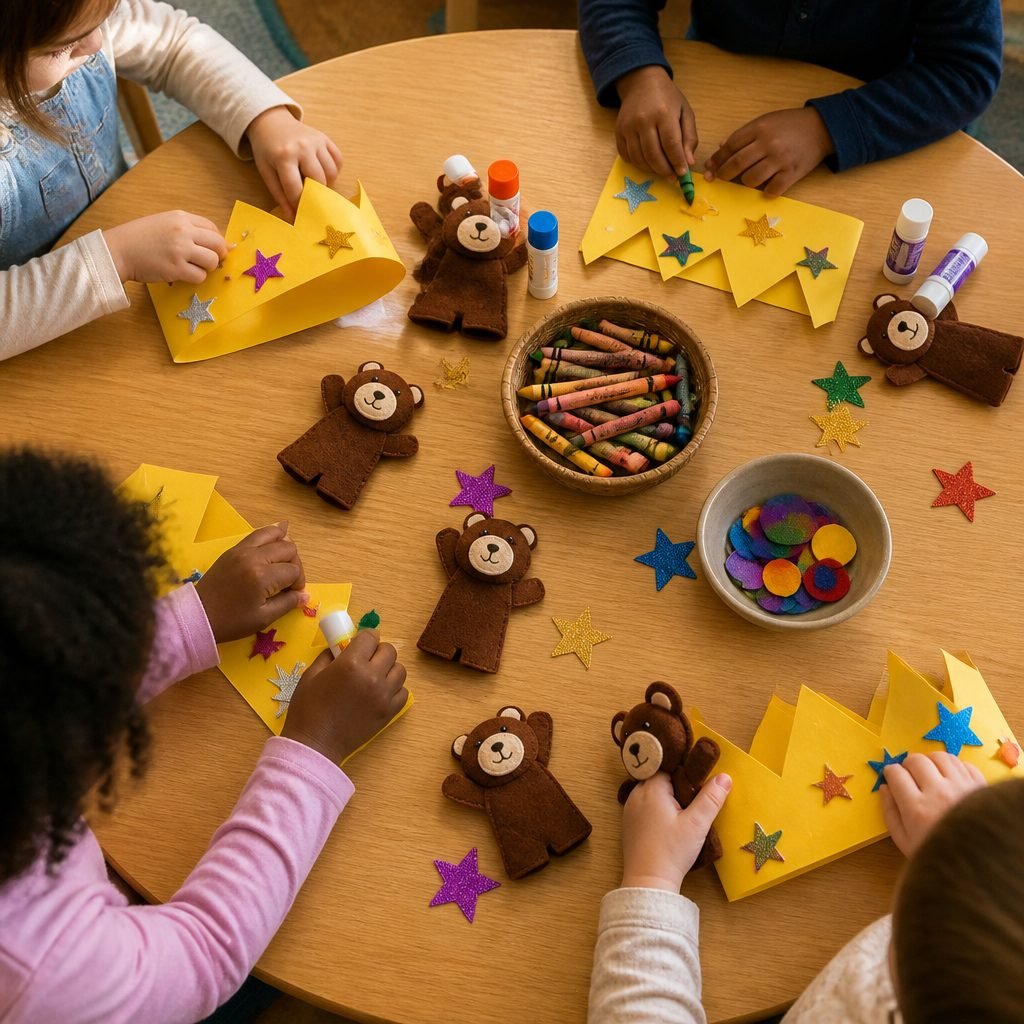
Storytime
Little kids don’t use the machine. They decorate. Cut everything the day before so the session is all crayons and glue.
- Crowns: cut crown-standard from cardstock (one per 12 × 12 sheet), or crown-joy on a Joy. Staple a paper strip through the two end slots and size it at the table.
- Finger puppets: cut the bear body twice from brown felt and the face once from cream. Glue the face on during the session; glue or stitch the two bodies together beforehand if the group is very young.
- Name tags from cardstock or sticker paper. Kids write their own names in the open area.
Pairs well with: owl, rocket, planet and rainbow books. Cut the owl or rainbow in removable vinyl for the window that week.

Teen programs
A decal night is the easiest first Cricut program for teens: one design, one color, and they leave with something on their laptop or water bottle.
- Show the whole cycle once with open-book-joy: upload, Make, load, cut, weed, transfer.
- Each teen picks a file (rocket, planet, gear, light bulb, owl, I ♥ my library) and uploads it themselves.
- While one mat cuts, the others weed and apply. The machine is the bottleneck, so keep a mat loaded and ready.
- Finish with a size challenge: the -joy and -standard versions of the same design, side by side.
Use permanent vinyl for water bottles and removable vinyl for laptops and anything borrowed. Our permanent vs. removable vinyl guide explains the difference, and how to weed vinyl is a good handout.
Adult craft night
Bookish projects go over well with adults, and they finish in an evening.
- Bookmarks: the owl and rocket bookmarks are 2 × 6 in, so they cut on any machine, Joy included. Add a tassel through the top hole.
- Book plates: cut bookplate-joy from printable sticker paper or vinyl and stick it inside the front cover.
- Decals: i-love-my-library-joy fits a mug or tumbler; the standard size fits a tote bag if you cut it from iron-on (mirror it, and see our first iron-on project).
For a full-size iron-on, check the HTV notes in the makerspace guide: iron-on needs Mirror on and the shiny side down.
License for libraries, schools and makerspaces
Libraries, schools and makerspaces may print, copy, cut and share these files with patrons and students.
- Put them on a kit USB stick, a shared drive, a makerspace computer or your LibGuide.
- Print the PNGs as coloring sheets or handouts. Cut them as many times as you like.
- Patrons and students can take their files home.
- Please don’t sell the files themselves.
This license covers this pack only: the 32 files on this page, the kit insert card and the project log. Everything else on cleancutsvg.com stays under our regular file license.
Cite or link this pack
No ads, no sign-up, nothing to buy. You’re welcome to link to this page from a library guide, a Library of Things catalog record or a class page, and to share the files as the license above allows.
APA: Clean Cut SVG. (2026, October 2). Free library makerspace pack: Cut files, kit card and project log. https://cleancutsvg.com/library-makerspace-pack/
MLA: “Free Library Makerspace Pack: Cut Files, Kit Card and Project Log.” Clean Cut SVG, 2 Oct. 2026, cleancutsvg.com/library-makerspace-pack/.
Found a file that won’t cut cleanly, or want a design for a program you run? Email hello@cleancutsvg.com. Pack built October 2, 2026. This is an independent site, not made, sponsored or reviewed by Cricut, Inc. Cricut, Cricut Joy, Design Space, Explore and Maker are trademarks of Cricut, Inc.
More for makerspace staff
The Cricut makerspace guide has a printable materials and settings chart, a station card, a test-cut pack and a troubleshooting table. New to SVG files? Start with what an SVG file is and how to upload one to Design Space.