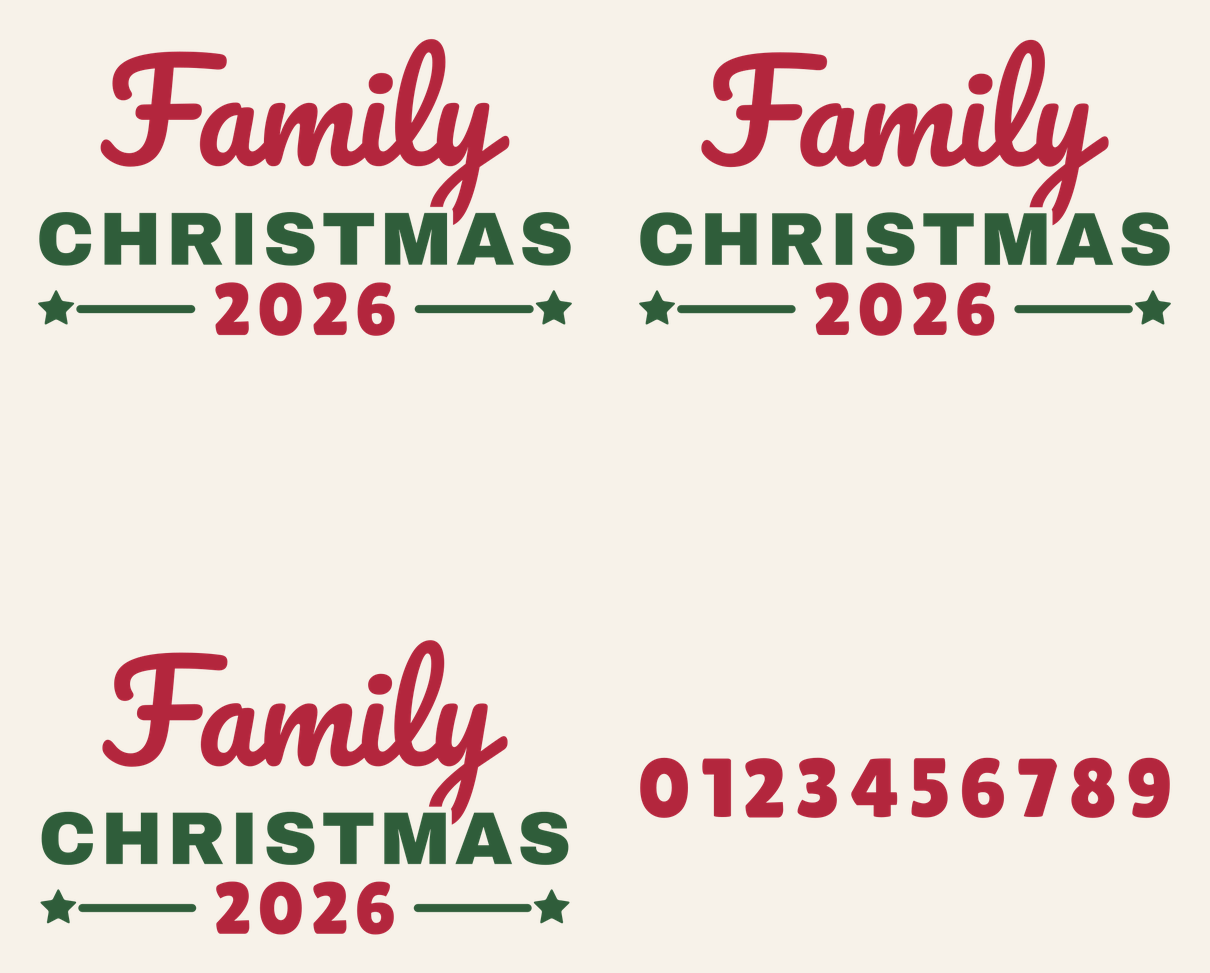
Matching shirts only match if the design looks right on every size, from Dad’s XL to the toddler’s 3T. This set gives you “Family Christmas 2026” in three sizes drawn from the same artwork: 10.5 in for adults, 8 in for youth and 6 in for toddlers. Each one was checked for iron-on at its own size, so nobody’s shirt gets a shrunk-down copy with thin spots.
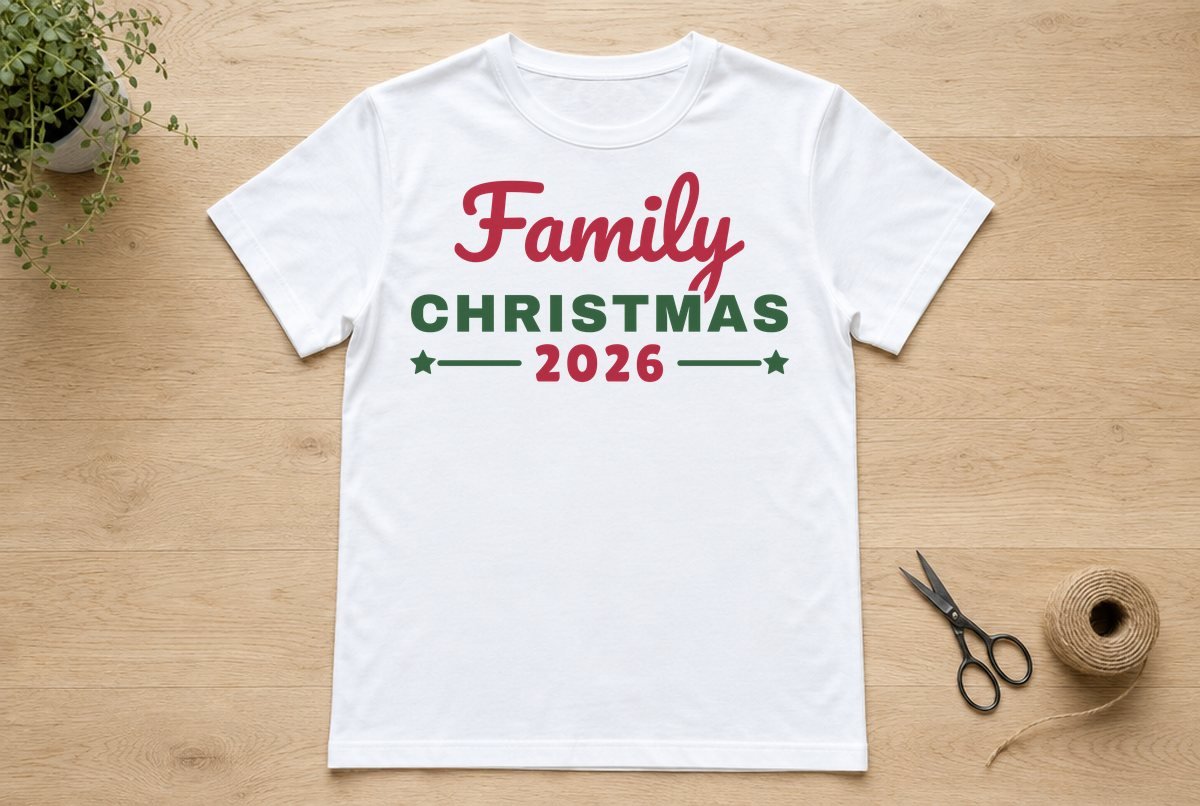
The layout is a red “Family” in script over green block capitals reading CHRISTMAS, with the year in red underneath, flanked by two rules and two small stars. And because next December will come around, there’s a matching 0 to 9 digit file so you can change the year without redrawing anything.
| File | Size | Material | Layers | Check |
|---|---|---|---|---|
| Family Christmas 2026, adult shirt (10.5 in) | 10.62 × 6 in | HTV (iron-on) | 3 layers | ✓ Cut-checked |
| Family Christmas 2026, youth shirt (8 in) | 8.12 × 4.62 in | HTV (iron-on) | 3 layers | ✓ Cut-checked |
| Family Christmas 2026, toddler shirt (6 in) | 6.12 × 3.5 in | HTV (iron-on) | 3 layers | ✓ Cut-checked |
| Year digits 0-9 (matches the adult size) | 9.38 × 1.25 in | HTV (iron-on) | 1 layer | ✓ Cut-checked |
How the design is layered
Each shirt file has three layers in two colors:
| Layer | What’s in it | Color in the file |
|---|---|---|
| Family | The word in Pacifico script, welded, with the capital F and the i dot as their own pieces | Red |
| Christmas | CHRISTMAS in Archivo Black, the two rules and the two stars | Green |
| Year | 2026 in Lilita One | Red |
None of the layers overlap. Where the tail of the script y drops toward the capitals, we cut a clean gap so it stops just short of the M instead of touching it. That means there’s no iron-on stacked on iron-on anywhere on the shirt, which keeps the print thinner and softer, and you don’t have to line up one layer on top of another.
The year sits on its own layer for one reason: so you can change it. Family and Year are both red, so you can cut them from the same sheet.
All three sizes passed our iron-on check, which uses a wider minimum stroke than adhesive vinyl. The toddler file was the one that mattered most, since the joins in the script are narrowest at 6 in, and it cleared the minimum. There’s no infant size, and shrinking the toddler file below 6 in takes it outside what we checked.
What you need
- Cutting machine and a standard grip mat
- Iron-on (HTV) in two colors, such as red and green, or white and gold on dark shirts
- Shirts for everyone (cotton, poly or blends your iron-on is rated for)
- Heat press or iron, with a protective sheet
- Weeding hook
- Ruler or a folded shirt crease to center the design
Changing the year
For 2026 shirts you can skip this. For any other year, there are two ways to do it, and both start with uploading the shirt file and clicking Ungroup at the top of the Layers panel.
Using our digits file
- Hide the digits you’re replacing. Select the Year layer, click Contour in the Layers panel and click the digits you want gone. Going from 2026 to 2027, you’d only hide the 6. Hidden contours turn a lighter shade and won’t cut.
- Bring in the new digit. Upload the year digits file. It’s one image with all ten digits, so select it, open Contour and hide every digit except the one you need. For a year that needs two new digits, duplicate the digits image and do the same on the copy.
- Match the size. The digits file matches the adult size exactly. For the youth or toddler file, shrink the new digit with the lock on until its height matches the digits beside it.
- Place and attach. Line the digit up with the others, then select it with the Year layer and click Attach so it cuts in that exact spot.
Typing it instead
The year is set in Lilita One, a free Google font. Install it, restart Design Space, and it’ll be listed under System fonts. Hide all four old digits with Contour, type the new year with the Text tool, pick Lilita One, match the height of the old year and attach it. Cricut’s help center explains Contour and Attach with screenshots.
Our cut check covers the 2026 files and the digits file, not a year you’ve rearranged. A new digit at the same height as the old ones has the same stroke thickness, so match the height exactly and don’t go smaller.
Cut and press
- Make It and mirror. Red and green land on separate mats. On the Prepare screen, check that Mirror is on for every mat. Design Space usually does this automatically for iron-on, but it’s set per mat.
- Cut shiny side down and weed. The i dot in Family and the two stars on the green layer are small separate pieces, so leave them on the carrier.
- Place all three layers. Fold the shirt in half to find the center line. Set the green layer first, then Family above it and the year below, keeping the small gap between the y and the M.
- Press. Follow Cricut’s Heat Guide or your iron-on maker’s time, temperature and pressure for your material and shirt. If carrier sheets overlap, check your iron-on’s instructions for pressing more than one color.
Our first Cricut shirt guide covers pre-pressing and peeling, and how to layer HTV is worth a read if you add a stacked color later.
Cutting for a whole family? Put every Family and Year layer you need on the canvas at once. All the red goes onto the same mats, and you’ll use less iron-on than cutting shirt by shirt.
Which file for which shirt
| Shirt | File | Design width |
|---|---|---|
| Adult S to XXL, sweatshirts | Adult | 10.5 in (up to 11.5 in on large sizes) |
| Youth S to XL | Youth | 8 in |
| Toddler 2T to 5T | Toddler | 6 in |
Don’t take any file below its listed width. If a small adult shirt looks crowded at 10.5 in, use the youth file at 8 in or a little larger instead of shrinking the adult one.
Ideas
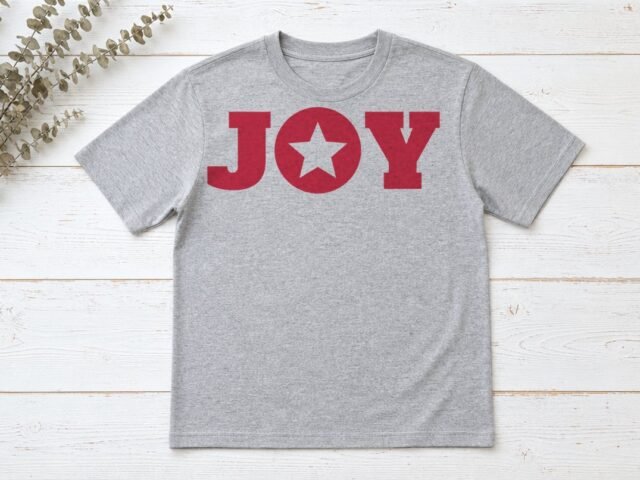
Red and green on a white or heather gray shirt is the classic look. On navy or black, try white for Family and the year with gold for CHRISTMAS. For pajama sets, the toddler file fits on a pajama top. Want a second design in the mix? Our Joy SVG uses the same red, and the Family Established sign carries the family theme onto the wall.
Questions
How do I change the year on the Family Christmas SVG?
Ungroup the file, hide the digits you’re replacing with Contour, then add new digits from the included 0 to 9 digit file (or type them in Lilita One) at the same height and attach them to the Year layer.
What size should a family Christmas shirt design be?
About 10.5 in wide for adults, 8 in for youth and 6 in for toddlers. Each file opens at that size.
Do the colors overlap?
No. The script, the capitals and the year sit side by side with small gaps, so each color presses straight onto the shirt with no stacking.