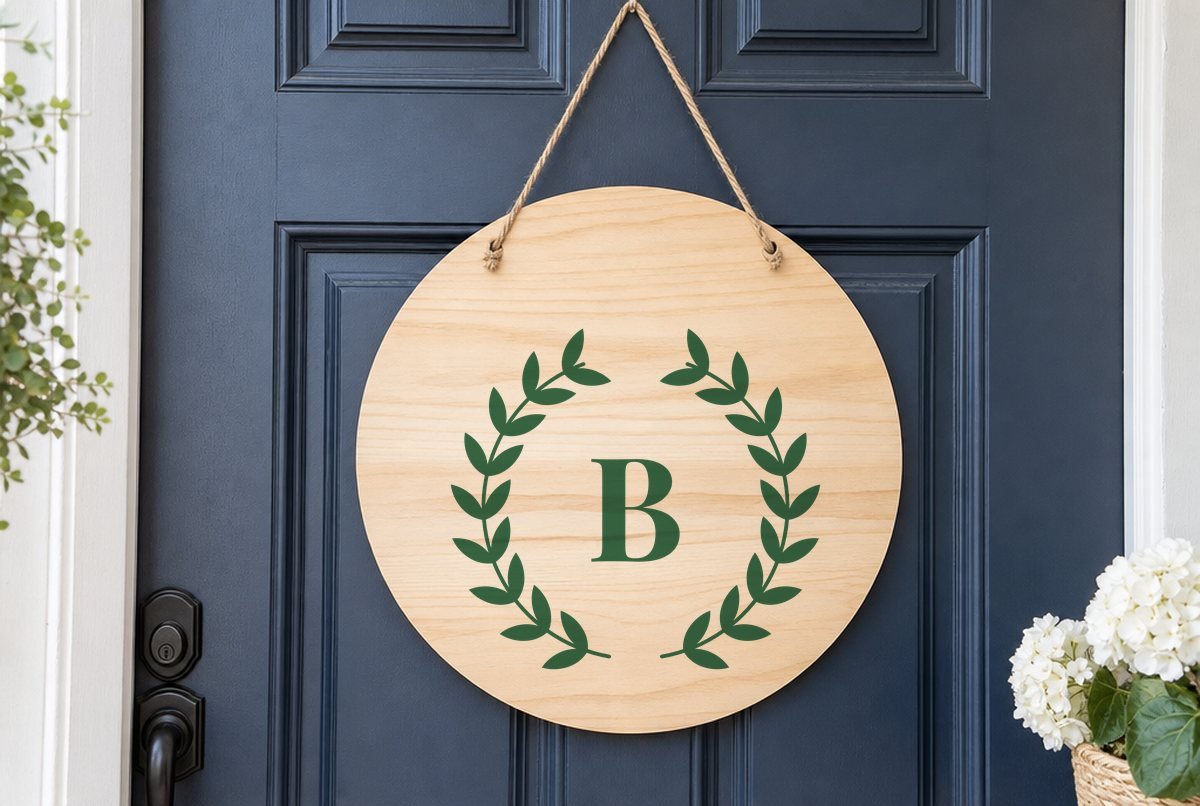
Twenty-six letters, twenty-six files. Pick the initial you need and you’re done: no typing, no welding, no fiddling with a font inside a wreath.
Each file is a single capital letter in a bold, high-contrast serif, centered between two laurel branches that curve around it, with a small gap at the top and bottom. Every letter is 6.1 x 5.64 in and was cut-checked for adhesive vinyl at that size, so the whole alphabet is ready for front doors, glass, wood signs and canisters.

| File | Size | Material | Layers | Check |
|---|---|---|---|---|
| Laurel monogram A | 6.12 × 5.75 in | Vinyl | 1 layer | ✓ Cut-checked |
| Laurel monogram B | 6.12 × 5.75 in | Vinyl | 1 layer | ✓ Cut-checked |
| Laurel monogram C | 6.12 × 5.75 in | Vinyl | 1 layer | ✓ Cut-checked |
| Laurel monogram D | 6.12 × 5.75 in | Vinyl | 1 layer | ✓ Cut-checked |
| Laurel monogram E | 6.12 × 5.75 in | Vinyl | 1 layer | ✓ Cut-checked |
| Laurel monogram F | 6.12 × 5.75 in | Vinyl | 1 layer | ✓ Cut-checked |
| Laurel monogram G | 6.12 × 5.75 in | Vinyl | 1 layer | ✓ Cut-checked |
| Laurel monogram H | 6.12 × 5.75 in | Vinyl | 1 layer | ✓ Cut-checked |
| Laurel monogram I | 6.12 × 5.75 in | Vinyl | 1 layer | ✓ Cut-checked |
| Laurel monogram J | 6.12 × 5.75 in | Vinyl | 1 layer | ✓ Cut-checked |
| Laurel monogram K | 6.12 × 5.75 in | Vinyl | 1 layer | ✓ Cut-checked |
| Laurel monogram L | 6.12 × 5.75 in | Vinyl | 1 layer | ✓ Cut-checked |
| Laurel monogram M | 6.12 × 5.75 in | Vinyl | 1 layer | ✓ Cut-checked |
| Laurel monogram N | 6.12 × 5.75 in | Vinyl | 1 layer | ✓ Cut-checked |
| Laurel monogram O | 6.12 × 5.75 in | Vinyl | 1 layer | ✓ Cut-checked |
| Laurel monogram P | 6.12 × 5.75 in | Vinyl | 1 layer | ✓ Cut-checked |
| Laurel monogram Q | 6.12 × 5.75 in | Vinyl | 1 layer | ✓ Cut-checked |
| Laurel monogram R | 6.12 × 5.75 in | Vinyl | 1 layer | ✓ Cut-checked |
| Laurel monogram S | 6.12 × 5.75 in | Vinyl | 1 layer | ✓ Cut-checked |
| Laurel monogram T | 6.12 × 5.75 in | Vinyl | 1 layer | ✓ Cut-checked |
| Laurel monogram U | 6.12 × 5.75 in | Vinyl | 1 layer | ✓ Cut-checked |
| Laurel monogram V | 6.12 × 5.75 in | Vinyl | 1 layer | ✓ Cut-checked |
| Laurel monogram W | 6.12 × 5.75 in | Vinyl | 1 layer | ✓ Cut-checked |
| Laurel monogram X | 6.12 × 5.75 in | Vinyl | 1 layer | ✓ Cut-checked |
| Laurel monogram Y | 6.12 × 5.75 in | Vinyl | 1 layer | ✓ Cut-checked |
| Laurel monogram Z | 6.12 × 5.75 in | Vinyl | 1 layer | ✓ Cut-checked |
How the wreath is built
The two branches are the same in every file; only the letter changes. Each branch is one piece, with the leaves welded onto a thin curved stem so the blade traces around the whole branch in one pass. The letter is a separate piece floating in the middle.
That thin stem is the part to respect. It passed our minimum-width check for adhesive vinyl at 6.1 in, but it’s still the narrowest thing in the design. Letters with enclosed spaces (A, B, D, O, P, Q and R) also have small counters to pick out. The rest are simpler.
Each file’s check looked for three things at 6.1 in: strokes too thin to cut, pieces too small to weed and background gaps too narrow to clear. All 26 passed. Here’s how we check our files if you’re curious.
What you need
- Adhesive vinyl (outdoor-rated permanent for doors and mailboxes)
- Standard grip mat
- Weeding hook
- Transfer tape
- Scraper, painter’s tape and a ruler for centering
- Rubbing alcohol and a lint-free cloth
Cutting one letter
- Unzip and pick your letter. The files are named laurel-monogram-a.svg through laurel-monogram-z.svg. You only need the one.
- Upload it. In Design Space, click Upload > Upload Image and choose the file. Our upload guide covers both desktop and phone. Silhouette Studio Basic Edition users can open the DXF version.
- Size it. 6.1 in wide is the smallest we checked. Scale up freely, keeping the proportions locked so the wreath doesn’t stretch.
- Cut. Choose your adhesive vinyl in the Make screen, Mirror off.
- Weed slowly around the stems. Peel the excess vinyl at a low angle, starting from the outside. When you reach a branch, peel along the stem rather than across it. Then pick out the space between the branches and the letter, and any counters.
- Transfer. Cover the whole design with one piece of transfer tape so the letter stays centered in the wreath. Burnish well over the leaves before you lift the backing.
If a stem lifts with the excess vinyl, lay it back down and peel from the other side. For a lot of fine leaves, reverse weeding helps: put transfer tape over the whole cut sheet before weeding, peel off the paper backing, then pick the excess vinyl off the tape. Our weeding guide shows how.
Sizes
| Project | Width | Material |
|---|---|---|
| Kitchen canister or storage jar | 6.1 in | Permanent adhesive vinyl |
| Glass front door or storm door | 6.1 to 9 in | Outdoor-rated permanent vinyl |
| Mailbox or planter | 6.1 to 8 in | Outdoor-rated permanent vinyl |
| Round wood door hanger (12 to 14 in) | 9 to 11.5 in | Permanent adhesive vinyl |
| Wall decal | 8 to 11.5 in | Removable vinyl |
Don’t shrink the letters below 6.1 in. The stems get thinner in proportion, and below the checked size they can tear during weeding. 11.5 in is the most a Cricut mat will cut across.
For a pillow or tote in iron-on, keep in mind these files were checked for adhesive vinyl, and iron-on needs heavier minimum strokes. Go at least a little bigger than 6.1 in, do a test cut, and press with the settings from the Cricut Heat Guide or your vinyl maker.
Personalizing it
Add a family name under the wreath
This makes a nice front door or porch sign. Add a text box with the Text tool and type the last name. Size it about as wide as the wreath, place it under the wreath, and select both. Use Align > Center Horizontally to line them up, then click Attach so they cut in that arrangement. The letters in our files are set in Playfair Display SC, a free Google font, if you want the name to match.
Use a different letter style
Want a script initial, or two letters for a couple? Upload any letter file, select it, click Contour in the Layers panel and click the letter to hide it, including its inner counters. Close the window and you have an empty wreath. Type your own initials in the middle, center them with Align, and Attach.
Your new letters won’t have been through our checker. Pick a font with solid strokes, and test cut if it’s a delicate script. Our monogram guide covers split, circle and wreath styles if you want to build your own.
Color ideas
- Deep green on a white or natural wood round, which matches the leaves.
- Gold vinyl on a black front door.
- Two colors: cut the file twice, hide the letter on one copy and the branches on the other with Contour, then layer a green wreath around a gold initial.
For a round frame instead of branches, see our scalloped circle monogram frame or the circle frame set, which includes a full laurel wreath with no letter in it.
Selling monogrammed signs? The license allows up to 500 finished items per design; please don’t share the files themselves.
Questions
Does the laurel monogram SVG include every letter?
Yes. The download has 26 separate files, A through Z, each with the same laurel wreath and a centered serif capital.
What size is each laurel monogram?
Each letter file is 6.1 x 5.64 in and was cut-checked for adhesive vinyl at that size. Make it bigger if you like, but not smaller.
How do I add a last name under the monogram in Design Space?
Type the name with the Text tool, place it under the wreath, select both, center them with Align and click Attach so they cut in place together.
Can I change the font of the letter?
Yes. Hide the letter with the Contour tool to get an empty wreath, then type your own initial in any font and attach it in the center.