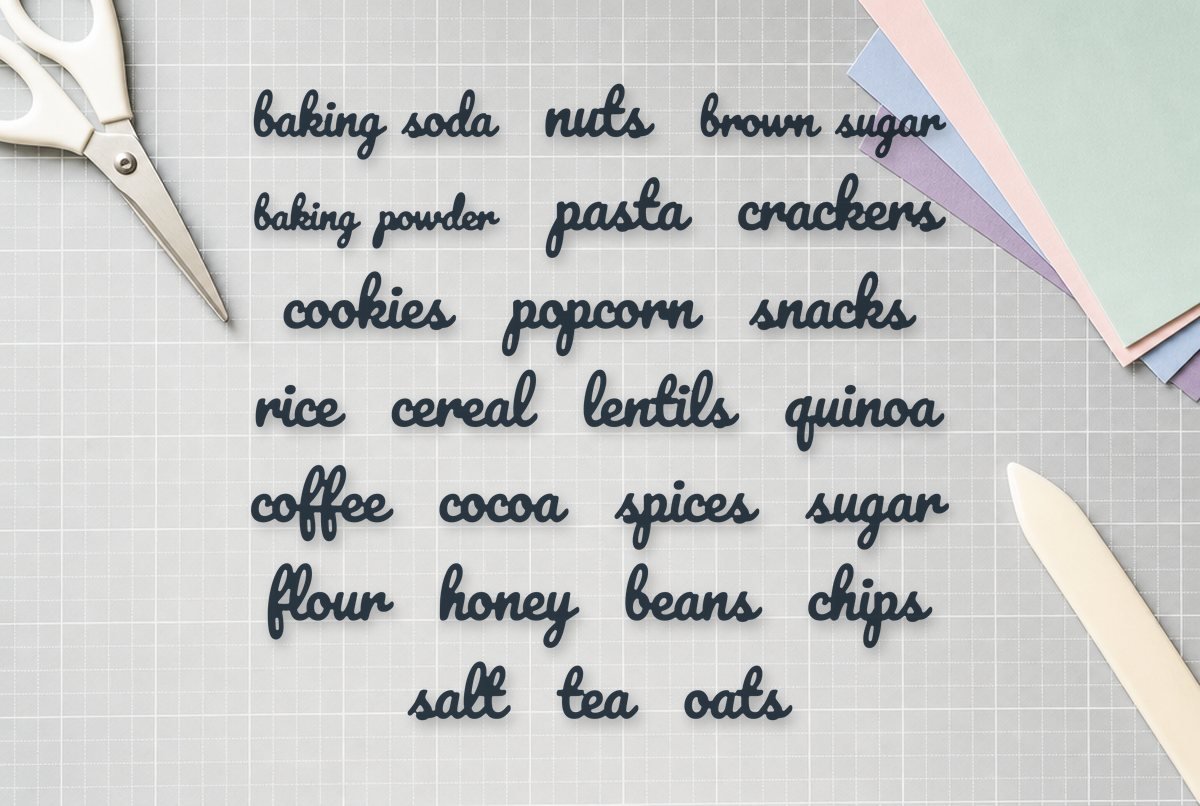
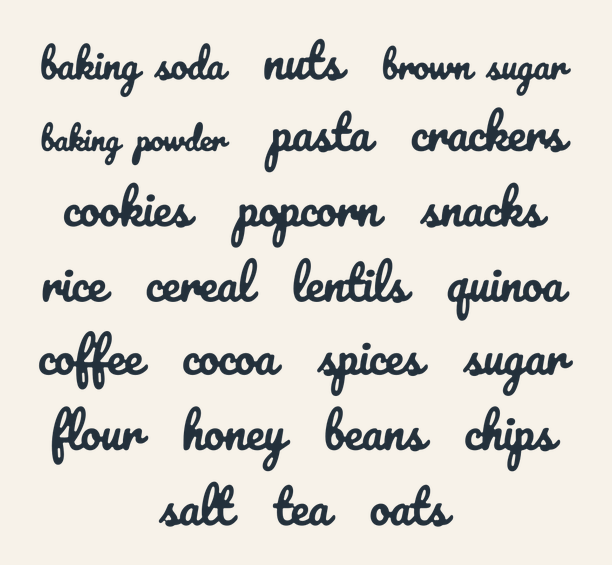
Flour, sugar, brown sugar, coffee, tea, rice, pasta, oats, cereal, snacks, beans, baking soda, baking powder, salt, cocoa, nuts, chips, crackers, popcorn, lentils, quinoa, honey, spices and cookies. That’s the whole list, and it all cuts from one sheet.
This free pantry label SVG sets 24 words in a round, friendly script, packed onto a single 11.5 x 10.5 in layout for adhesive vinyl. The lowercase letters are about 0.47 in tall on every word, so a row of canisters looks like a set. The two-word labels are capped at 4 in wide so they still fit a canister.
| File | Size | Material | Layers | Check |
|---|---|---|---|---|
| Pantry labels: 24 words | 11.5 × 10.5 in | Vinyl | 24 layers | ✓ Cut-checked |
One sheet, 24 layers
One file means one upload for a whole pantry. The sheet is 11.5 in wide, which just fits the 11.5 in cutting width of a 12 x 12 in Cricut mat. Inside it, every word is its own layer, named after the word in the file, and all 24 layers share one color, so the words you keep cut together on one mat.
Each word is welded into a single piece, so the script letters join cleanly with no cut lines through the connections. The dots on the i’s in spices, quinoa, chips and the rest are the only loose bits, and they passed our check for pieces too small to weed at this size. The whole sheet also passed for thin strokes and for gaps too narrow to clear.
Because each word is a separate layer, you never have to cut words you don’t need. Hide or delete those layers in Design Space before you cut; see “Cutting just a few words” below.
What you need
- Permanent adhesive vinyl (removable if you change what’s in your jars often)
- Standard grip mat, 12 x 12 in
- Weeding hook
- Transfer tape
- Scissors
- Rubbing alcohol and a lint-free cloth to clean the containers
From sheet to shelf
- Upload the SVG. In Design Space: Upload > Upload Image, then pick pantry-labels-24-words.svg. It arrives as a group of 24 layers. Check it came in at 11.5 x 10.5 in. (Full walkthrough: uploading an SVG to Design Space.)
- Hide the words you don’t need. Click the eye icon next to each unwanted layer in the Layers panel. Leave the size alone: making the whole sheet bigger would push it off the mat, and shrinking it makes the script’s thin joins too fine. If you need bigger words, see the sizing notes below.
- Cut. Pick your adhesive vinyl in the Make screen, Mirror off. Check the mat preview to see where your words landed, and make sure your vinyl covers them.
- Weed. Peel the excess vinyl away in one go if you can, starting at a corner, then pick out the insides of the a’s, o’s, e’s, g’s and the loops of the l’s, b’s and k’s.
- Tape, then cut apart. Cover the words in transfer tape and burnish. Then cut between the words with scissors, so each label has its own square of tape and backing.
- Apply one at a time. Clean each container, peel the backing, and smooth the word on from the middle outward. On a round jar, press the center first and work toward both ends; vinyl on curved surfaces explains why.
Weeding every counter in all 24 script words takes a while, which is one more reason to hide the ones you won’t use. If small bits keep lifting, our weeding guide covers reverse weeding, which works well for loopy lowercase letters.
Cutting just a few words
Only need six labels? You don’t have to cut all 24. Each word is a separate layer, so in the Layers panel you can click the eye icon next to any word to hide it. Cricut’s help pages are clear on this: hidden layers don’t cut, draw, score or print. Click the eye again to bring a word back. If you know you’ll never want a word, select its layer and delete it instead.
The same trick splits the sheet for smaller mats. Duplicate the design, hide half the words on one copy and the other half on the second, and cut them as two jobs. The kept words stay in their spots on the sheet unless you move them; our weld vs attach vs group guide is handy if you want to rearrange them closer together to save vinyl.
Sizing
| Container | What fits |
|---|---|
| Quart mason jar or medium canister | Single words as cut (about 1.3 to 3 in wide) |
| Large flour or sugar canister | Any word as cut, including the 4 in two-word labels |
| Spice jar | Too small for these words at their checked size |
| Wide bin or basket tag | Two-word labels, or single words enlarged |
The sheet was checked at 11.5 in wide. If you need smaller labels, like spice jars, don’t shrink this sheet; the thin script joins would drop below what we checked. You can make words larger, though. Hide or delete the words you don’t want, and enlarge the rest so they still fit the 11.5 in mat width.
Adding a word we didn’t include
The script is Pacifico, a free open-license font from Google Fonts. Install it and it shows up in Design Space as a system font. Type your word with the Text tool, set it to Pacifico, and size it on the canvas next to one of our words so the lowercase letters match. Then select the text and click Weld, so the connecting strokes don’t cut as separate letters. Your added word hasn’t been through our checker, so it’s worth a test cut.
Material ideas
- Matte black or white vinyl on clear glass or acrylic canisters. It’s the easiest to read on a shelf.
- Gold or copper vinyl on white ceramic canisters.
- Removable vinyl if you rotate what goes in each jar, or rent and want the jars to go back to plain.
Permanent vs removable is its own decision, especially for anything that gets washed. This guide goes surface by surface. Check the vinyl maker’s care notes for washing, too.
Want a frame around a label? Put a word inside one of our free circle frames for bigger canisters.
Questions
What words are in the pantry label SVG?
Flour, sugar, brown sugar, coffee, tea, rice, pasta, oats, cereal, snacks, beans, baking soda, baking powder, salt, cocoa, nuts, chips, crackers, popcorn, lentils, quinoa, honey, spices and cookies.
How do I separate the words in Cricut Design Space?
You don’t need to. Every word is already its own layer. Hide the words you don’t want with the eye icon in the Layers panel, or delete those layers, then cut. Trim the kept words apart with scissors after the transfer tape is on.
What font is used on these pantry labels?
Pacifico, a free open-license script font. Install it and weld any word you type so the letters cut as one piece.
Can I use these labels on spice jars?
Not at this size. The words were checked at the full sheet size, and shrinking them for small spice jars can make the thin script joins too fine to cut.